

Slack
Connect a Slack workspace once and every alert rule can deliver to any of its channels. Alerts arrive in Slack as rich cards posted by the Monita bot — not bare webhook text — and when an issue recovers, the recovery message threads under the original alert so the channel stays readable.
Each alert card shows the severity, the vendor and URL involved, the value protected (when the rule carries one) and a View issue button that deep-links to the issue in Issues.
Connect your workspace
Section titled “Connect your workspace”You need to be a Monita admin, and a member of the Slack workspace who is allowed to install apps.
-
In Integrations, find the Slack card and click Add to Slack.
-
Slack shows its consent screen for the Monita app. Review the permissions and click Allow. The app only requests what delivery needs: posting messages and listing channels.
-
You land back on the Integrations page with the workspace connected. Pick the default channel from the dropdown and click Use channel.
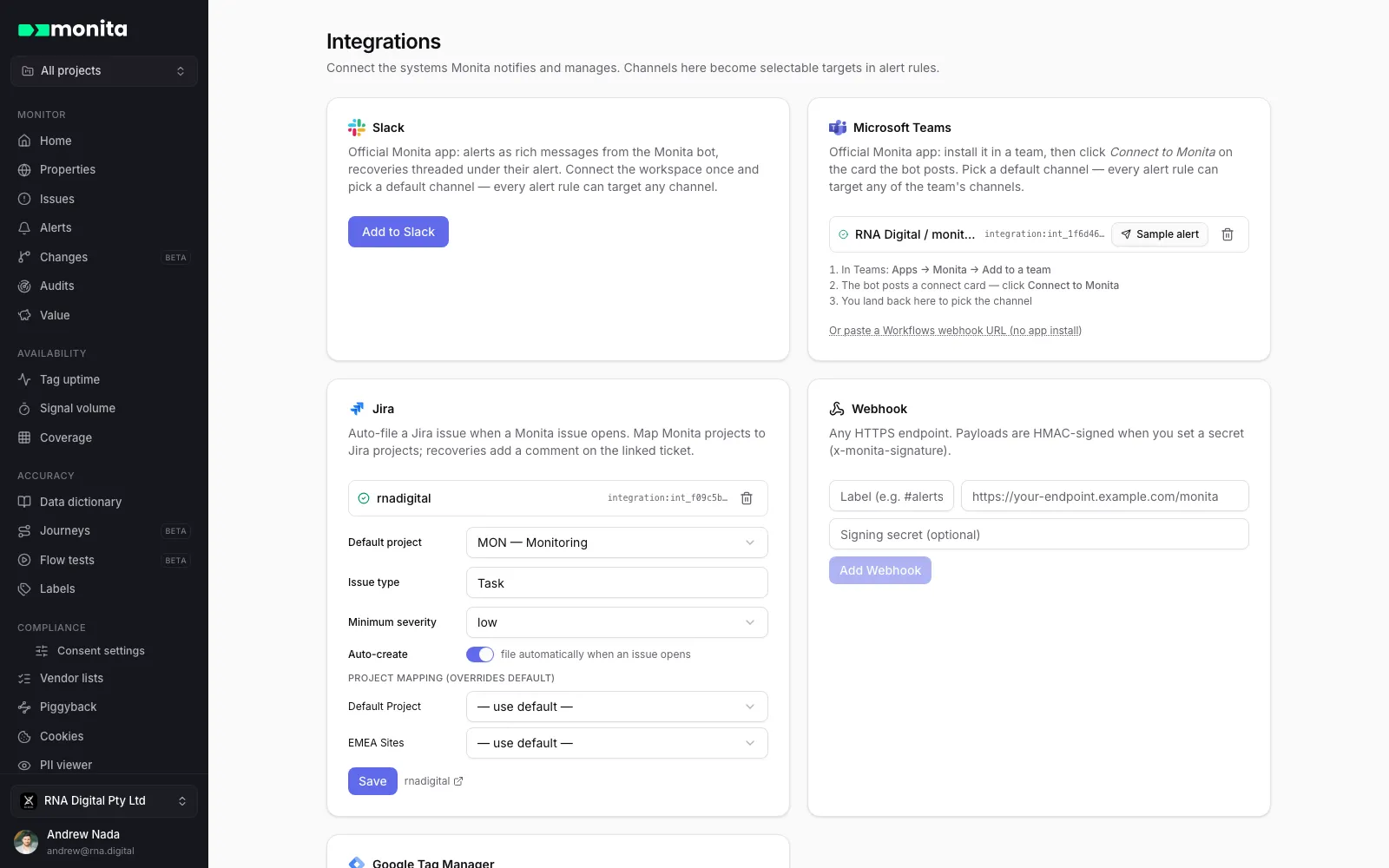
-
Monita immediately posts a confirmation message to the channel you picked. If you see it, the connection is active.
Private channels
Section titled “Private channels”Public channels work straight away. For a private channel, Slack only lets the bot see and post to channels it has been invited to — run this in the channel first:
/invite @MonitaThen pick the channel in Monita. If you pick a private channel before inviting the bot, the test post fails with a clear error telling you to invite the app first.
Route different alerts to different channels
Section titled “Route different alerts to different channels”The channel you pick at connect time is the workspace’s default. Any alert rule can override it:
- When you build or edit a rule in Alerts, choose Slack as the channel type and pick the connected workspace.
- Then pick any channel in that workspace for this rule — for example, compliance rules to
#privacy, checkout rules to#ecommerce-oncall.
One workspace connection is enough for any number of rules and channels. You can also connect additional channels as their own integration entries if you prefer named destinations.
Recoveries
Section titled “Recoveries”When the condition behind an alert clears, Monita posts the recovery as a threaded reply under the original alert message (and re-broadcasts it to the channel so it isn’t missed). Alert and recovery stay together — no scrolling to match them up.
Disconnecting
Section titled “Disconnecting”Remove the integration from the Integrations page. Alert rules that targeted it stop delivering to Slack; their other channels are unaffected. Only Monita admins can add or remove integrations.