

Properties
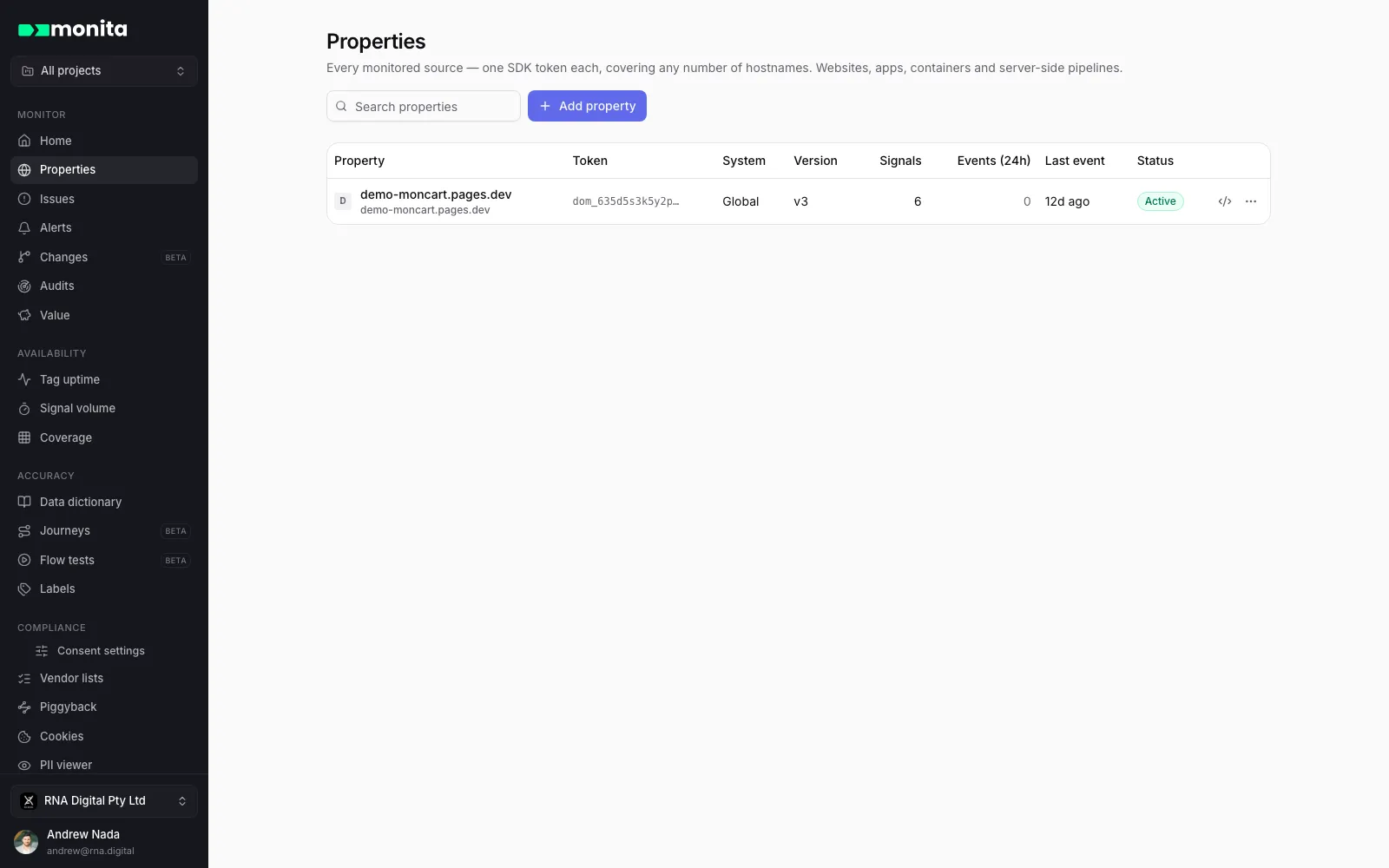
A property is one monitored source with one SDK token. For a website property, that single token can cover any number of real hostnames — one snippet deployed everywhere, with hostnames registering themselves as traffic arrives. Manage properties at app.monita.ai/domains.
Source types
Section titled “Source types”| Type | What it monitors | Setup |
|---|---|---|
| Website | Client-side JavaScript across any number of sites and TMSs | Deploy one script — see Websites |
| Mobile app | Native app vendor traffic, any vendor in the catalog | Initialise the iOS or Android SDK with the property token |
| GTM container | Every tag firing inside a Google Tag Manager container | Monita deploys its approved tag template into a workspace — you review and publish |
| Server-side | A server-side TMS or custom pipeline | Stream events straight to the collect API — see Server-side |
Create a property
Section titled “Create a property”-
Go to Properties → Add property and pick the source type.
-
Name the property and, for websites, list the hostnames you know. You can leave the list empty — hostnames auto-register from traffic (see below).
-
Optionally scan one of your URLs. The scan detects the marketing signals already firing on the page and pre-configures them. You can also add signals from the catalog by hand, or skip entirely — signals are discovered from live traffic too.
-
Create. The token is minted, dev and prod script configs are published, and the automatic volume-anomaly, data-drift and compliance monitors start watching immediately.
Tokens
Section titled “Tokens”Each property has exactly one token. It appears in the install snippet (https://cdn.monita.ai/custom-config/<token>.js), in the mobile SDK initialiser, and as the token header for server-side collection. Copy it from the property list’s row menu. Tokens identify the property only — org-level API access uses separate API keys.
Hostnames
Section titled “Hostnames”A website property’s hostname list is descriptive, not a gate: any site running the snippet with that token reports in. New hostnames appear on the property’s Hostnames tab as unreviewed so an unexpected deployment (a franchisee copying your container, a staging site left tagged) is visible rather than silently absorbed. Review and approve or reject them there.
Dev and prod script environments
Section titled “Dev and prod script environments”Website properties keep two script environments:
- Save to dev publishes your signal and config changes to the dev script only —
…/<token>.dev.js. Install that build on staging and verify before anything reaches customers. - Promote to prod ships the dev config to production. Monita shows a diff of exactly what changes — signals added, removed, patterns edited — before you confirm. The new version is live on the CDN within seconds.
- Roll back from the version history (the prod badge on the property page). Rolling back republishes an earlier version’s config as a new version, so history stays linear and you can roll forward again the same way.
Page-view sampling is part of the versioned config too: the rate you save to dev ships with the next promote, and a rollback restores the rate that version ran with.
Dev traffic is a hard partition: events from dev-script installs never mix into production dashboards or baselines. Volume and the Data dictionary each have a Production/Dev toggle, and you can opt the dev environment into automatic monitoring under Alerts → Auto Alerts.
First-party collection
Section titled “First-party collection”By default the script beacons to Monita’s collection hostname. Ad blockers silently drop a share of beacons sent to third-party domains, so enterprise plans can route collection through your own hostname (for example metrics.yoursite.com) on a Monita-managed TLS certificate — no tag changes required. Request it from the property’s Routing tab; your account manager sets it up with you.
Rename a property
Section titled “Rename a property”Renaming changes the display name only — the token, configuration and history are untouched. Any org member with admin rights can rename from the property list or the property page header.
Delete a property
Section titled “Delete a property”Deletion is restricted to organisation admins and requires typing the property name to confirm. Before you type it, the dialog lists everything the delete will touch, so there are no surprises. When you delete a property:
- The token stops accepting events within minutes, and the script is taken down from the CDN. If the snippet is still deployed on your pages it no-ops — no errors on your site.
- The property’s signals and learned baselines are removed.
- Alert rules scoped only to this property are deleted. A multi-property rule keeps running on its other properties; if this was its last property it is disabled rather than deleted, so you can re-scope it.
- Open and acknowledged issues on the property are closed, with “Property removed” on their timeline, so nothing stays open with no one watching it.
- Journey tests targeting the property are archived, and property-level vendor policies are removed. Organisation and project policies are untouched.
- Issue history, audit runs and billing records are kept.
Deletion cannot be undone from the app. If you deleted the wrong property, contact support@getmonita.io as soon as possible — configuration may be recoverable from an archive.